Miro Import: How to Move Your Boards to Collaboard
A Miro import becomes important when you want to move existing boards to another online whiteboard without rebuilding workshops, brainstorming sessions, or project content from scratch. What matters most is keeping your content intact and being able to continue working immediately after the switch.


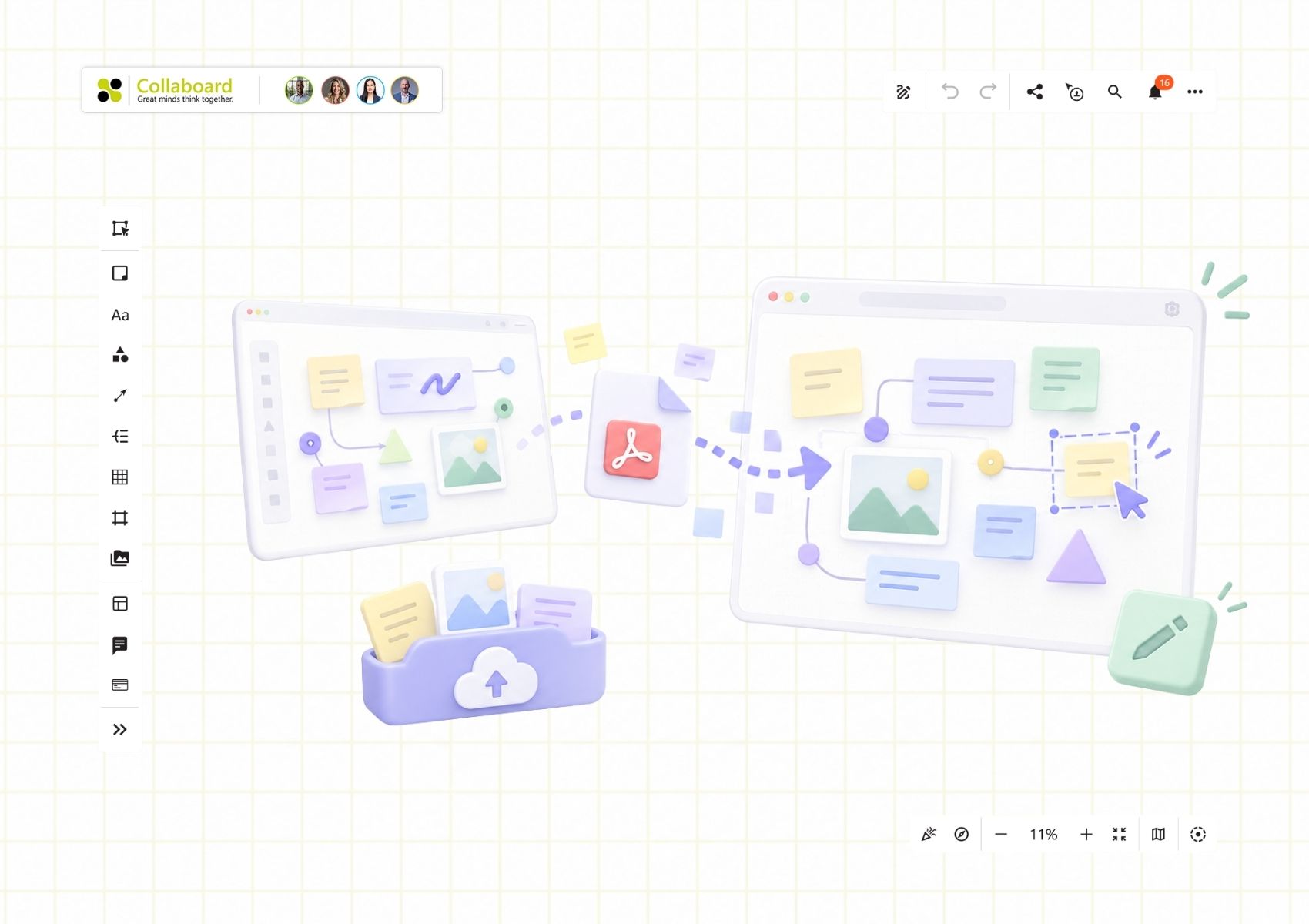

Collaboard analyzes Miro boards exported as vector PDFs and converts many elements into editable objects. Sticky notes, text, images, shapes, and lines can often be reused right away. More complex areas should be reviewed after the import and rebuilt where necessary.
Miro Import: Key Takeaways
- To import a Miro board, export the complete board or selected frames as a vector-quality PDF and then upload the file to Collaboard.
- Collaboard detects text, sticky notes, images, shapes, and lines in the vector PDF and can often recreate them as editable whiteboard elements.
- Tables, frames, Kanban boards, mind maps, drawings, and heavily overlapping content may appear as images, text boxes, rectangles, or multiple objects and may require some manual adjustments.
- For large Miro boards, split the content into several sections and import them separately. This makes it easier to review and correct the transferred content.
Which Miro Content Can You Import into Collaboard?
Collaboard does not simply place the exported Miro PDF on the board as a static image. The online whiteboard analyzes the file and matches the objects it contains with suitable Collaboard elements. As a result, sticky notes, text, images, shapes, and lines often remain editable.
After the import, you can move, edit, delete, or add to these elements. This works particularly well for content types that are structured similarly in both whiteboards. For more complex Miro objects, Collaboard recreates the appearance as closely as possible using images, text boxes, rectangles, or a combination of multiple elements.
The table below gives you a quick overview of what to expect when moving from Miro to Collaboard:
Frames, tables, Kanban boards, mind maps, and drawings may benefit from some manual cleanup. These elements often have no exact equivalent in Collaboard, so review their positions, spacing, and connections after the import.
With simple board structures, much of the content is ready to use immediately. For more complex sections, you will first get a visually similar version that you can then reorganize or extend with Collaboard tools.
How Should You Prepare Your Miro Board for Import?
Clean up your Miro board before exporting it. This reduces the amount of work after the import and makes it easier to see which content Collaboard has transferred correctly.
Start by removing anything you no longer need, such as outdated notes, duplicate cards, old drafts, or hidden work areas. Then organize the remaining content into clearly defined sections. Frames, headings, and enough space between elements will make the import easier to review.
Pay particular attention to the following content before exporting:
- heavily overlapping text, images, or shapes
- tables with many rows, columns, or merged cells
- large areas containing drawings or handwritten notes
- diagrams with many grouped elements
- content that uses custom colors, fonts, or formatting
Some of these elements do not have a direct equivalent in Collaboard. They may therefore appear as images, text boxes, rectangles, or multiple combined objects. Decide in advance which areas you want to continue editing and where a static visual representation is sufficient.
When should you split a large board? Split your board if it contains a very large number of elements, several large frames, or extensive diagrams. Long workshops with many phases are also often easier to transfer as separate files. Select only the frames or elements you want to export together. Miro can save selected frames as a separate PDF file.
How Do You Export a Miro Board as a Suitable PDF?
For a direct Miro import, you need a vector-quality PDF. You can export the entire board, individual frames, or a selected area.
In Miro, follow these steps:
- Open the Miro board you want to transfer.
- Open the export menu using the three-dot menu and the “Board” section.
- Select “Save as PDF” or export a frame you selected beforehand.
- Choose the highest available quality or vector quality.
- Start the export and save the file to your device.
If you only want to transfer individual frames, select them before exporting. Miro places each frame on a separate page in the PDF. For a larger custom area, select the relevant elements, create a frame around them, and export that frame as a vector PDF.
The export options available in Miro depend on your subscription, browser, and device. Board permissions also play a role. Owners and admins can restrict whether content may be copied or exported.
Why Should You Choose Vector Quality?
A vector PDF stores text, lines, and shapes as separate elements. Collaboard can analyze this data and is therefore more likely to recreate it as editable whiteboard content. Imported text, images, shapes, and lines can then be moved, edited, or deleted.
A lower-quality or compressed PDF may combine content more heavily and can lose embedded links. Screenshots and JPG or PNG files, by contrast, consist of a single image. The original layout remains visible, but the individual elements cannot be edited directly.
What Can You Do If Miro Does Not Allow Exporting?
First, check the board’s sharing and permission settings. Ask the owner, co-owner, or responsible admin to enable your permission to copy and export content.
If PDF export remains blocked, you still have several alternatives:
- Upload a screenshot or exported image to Collaboard.
- Upload an existing PDF as a static document on the board.
- Export text and sticky notes as a CSV file and transfer the content to Collaboard.
- Copy tables or individual text sections directly from Miro and paste them into Collaboard.
These methods do not fully replace the direct Miro import, but they can help you preserve important content and continue working with it on your new board.
How Does the Miro Import Work in Collaboard?
Open the Collaboard project where you want to transfer your existing Miro board. For the import, you need the vector-quality PDF you previously exported from Miro.
Follow these steps:
- Click the three-dot menu in the top-right corner.
- Select “Import from PDF.”
- Choose “Miro” from the selection menu.
- Select the vector PDF on your device.
- Upload the file and start the import.
Collaboard analyzes the objects in the file and maps them to suitable whiteboard elements. Text, for example, appears as text boxes, sticky notes as facilitation cards, and lines as editable lines.
Important for further editing: The Miro import does not simply place your board in Collaboard as a flat screenshot. If the PDF contains suitable vector data, Collaboard can recreate text, shapes, images, and lines as individual elements. You can then move, edit, add to, or delete them.
If a Miro object has no direct equivalent in Collaboard, the import recreates the content as closely as possible. Depending on the structure, Collaboard uses images, rectangles, text boxes, or a combination of multiple objects.
How Long Does the Import Take?
There is no fixed import time. Several characteristics of the board affect how long the process takes and how much review may be needed afterward:
For very large Miro boards, split the board into several sections before exporting. Import the files one after another and review each section immediately. This makes it easier to identify where text is missing, lines have shifted, or content needs to be rearranged.
How Do You Review and Edit an Imported Miro Board?
Review the transferred board before sharing it with others or using it in a workshop. A quick walkthrough of all sections helps you identify any differences early.
Use this checklist:
Sticky notes, text, images, shapes, and lines can often be used immediately. Frames, tables, Kanban boards, mind maps, and drawings should be checked more carefully. Rebuild these areas if you expect to update or move them frequently later on.
How Do You Rebuild Miro Frames in Collaboard?
After the import, Miro frames may initially appear as rectangles. The rectangle marks the previous area, but it does not provide the functionality of a Collaboard frame.
Rebuilding the frame only takes a few steps:
- Delete the imported rectangle.
- Select all elements in the relevant area.
- Add the selection to a new Collaboard frame.
- Check the heading, spacing, and positions.
If the objects do not fit properly inside the new frame, use the “Fit to content” function. Collaboard adjusts the frame to the elements it contains. You can then move it as needed or use it in presentation mode.
What Is the Best Way to Transfer Tables?
When importing a PDF, a Miro table may be converted into several images and text boxes. The original appearance often remains recognizable, but individual values or columns may not always be easy to edit.
You have two main options for tables:
For important tables, test copying them directly from Miro and pasting them into Collaboard. Then review all values, column widths, row heights, and spacing. For very large tables, consider transferring individual sections separately.
What Should You Do with Kanban Boards, Mind Maps, and Drawings?
These types of content often consist of many connected or grouped objects. After the import, they may therefore appear as images, text boxes, or multiple separate elements.
Editable or visually identical? If you want to keep editing the content later, rebuild it using Collaboard tools. If you only need to preserve the original appearance, export the area as an image and upload it to your board.
Rebuilding is especially useful for:
- columns and cards in a Kanban board
- nodes and connections in a mind map
- diagrams with many grouped elements
- large areas containing drawings or handwriting
- sections with heavily overlapping objects
If needed, add new sticky notes, shapes, lines, or comments on top of static images. This keeps the original layout visible while still allowing you to add new content directly on the board.
Conclusion: Continue Working with Your Miro Boards in Collaboard
Using a vector-quality PDF, you can transfer complete Miro boards or selected sections to Collaboard in just a few steps. Sticky notes, text, images, shapes, and lines often remain editable, while more complex content can be reviewed after the import and rebuilt with Collaboard tools where necessary.
After switching, you can choose from several hosting models, including Open Telekom Cloud in Germany, Microsoft Azure in Switzerland or the Netherlands, as well as deployment on your own servers. With on-premises deployment, air-gapped environments, password protection, two-factor authentication, and single sign-on, you maintain control over your boards and access.
Want to test an existing Miro board in Collaboard? Start using Collaboard for free.
On This Page

Start for free with Collaboard
Create your first online whiteboard, invite others and start collaborating visually.
You can use Collaboard for free and upgrade later whenever your needs grow.
*No credit card required
Michael Görög
Co-Founder Collaboard
Michael Görög is co-founder of Collaboard and is passionate about digital collaboration, visual work and the future of teamwork. He regularly shares practical insights on online whiteboards, collaboration methods, AI and new ways of turning ideas into action.


.avif)
Frequently asked questions
Any questions? We are here to help.
Yes. You can export a complete Miro board as a vector PDF and then import it into Collaboard. You can also transfer individual areas or selected frames separately. For large boards, using several smaller files makes it easier to review the result after the import.
Sticky notes, text, images, shapes, and lines often remain available as individual elements after the import. You can move, edit, add to, or delete them in Collaboard. Tables, mind maps, frames, and Kanban boards may look different or require additional adjustments.
Use a vector-quality PDF. It stores text, shapes, and lines as separate data that Collaboard can recognize and convert into suitable whiteboard elements. Screenshots and image-only files, on the other hand, display the board as a static graphic.
Miro and Collaboard use different element types and rendering rules in some areas. As a result, tables, frames, mind maps, Kanban boards, drawings, or overlapping content may look different after the import. Depending on their structure, Collaboard recreates these areas using images, text boxes, rectangles, or multiple elements.
Yes. You can copy tables or text sections directly from Miro and paste them into Collaboard. Sticky note text can be transferred using a CSV file. You can also upload images and existing PDF files to your Collaboard board as static content.
Subscribe to the newsletter
Stay up to date with the latest tips and news on collaboration.
Start your next whiteboard now
Get a free trial of Collaboard with up to 3 boards and five people per session. All key features are available for you to try out.