How to Create Presentations with AI in Collaboard
Use Claude, ChatGPT or another AI assistant with the Collaboard MCP Server to build an editable presentation on your whiteboard. This post shows how slides work on a canvas, a practical five-step workflow and an example prompt you can adapt.


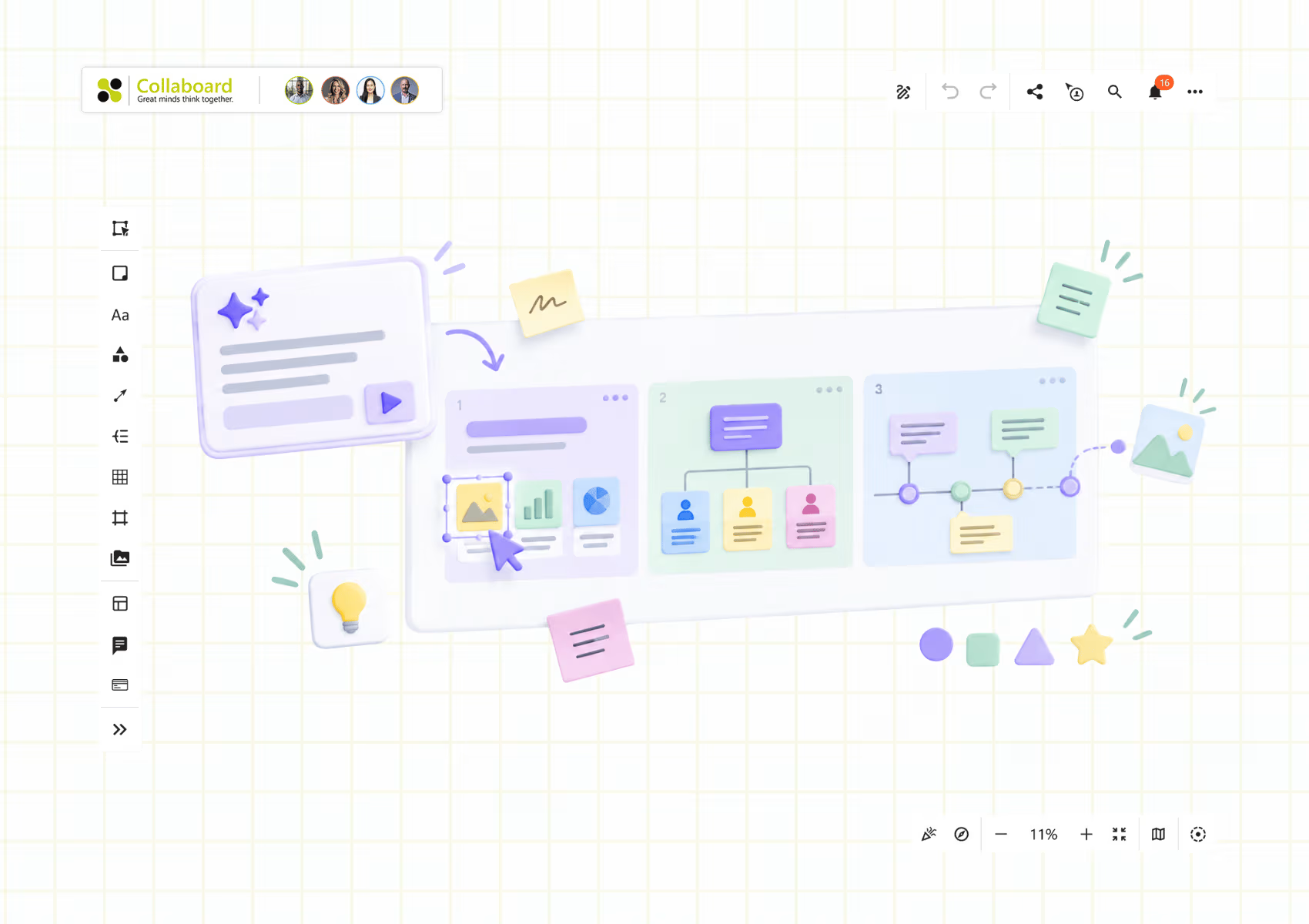

With the Collaboard MCP Server, you can use Claude, ChatGPT or another compatible AI assistant to create an editable presentation directly on an online whiteboard. Slides built from colored rectangles and editable objects give your presentation structure, while the surrounding canvas gives you room for detailed roadmaps, org charts and discussion.
This lets you prepare a well-structured presentation with your own content and design in very little time.
You can set up a clear sequence, expand an area when a topic needs more explanation and keep working on the same content with your team afterwards.
How does AI create a presentation in Collaboard?
You describe the presentation you need, and the AI uses editable board objects to build it. Those objects can include text, sticky notes, shapes, lines, connectors and arrows. It can also use Collaboard’s library of more than 1,000 icons to illustrate the content.
For example, a section about project responsibilities can contain people or department icons, text labels and connecting lines. A roadmap can use milestones, dates and arrows.
You can change the wording, move a milestone, replace an icon or rearrange a section yourself.
Build slides with colored rectangles and editable content
A slide on a whiteboard can start with a simple rectangle. Its background color defines the presentation area, and text, icons, shapes and other objects sit on top of it. The AI can create these elements through the MCP Server and arrange them into a sequence of slides.
Each slide can have its own title, layout and visual content. Add guidelines on layout, colors, typography and visuals to your prompt so the presentation matches your design.
Once the slides are ready, you can add all the content of a slide to a frame in one step. Before you do this, enable the setting that automatically creates a Quick Link for each new frame. That way, your presentation navigation is set up within a few minutes.
You can then arrange the Quick Links in the order you want to present and move through them in presentation mode.
More room when the topic needs it
In PowerPoint, every slide has the same fixed format. That helps you stay focused, but some content needs more space to make sense.
Think about an org chart. You may want to begin with the leadership team and then show the departments and their relationships. On a whiteboard, you can keep the overview and the detailed chart together, moving between them as you explain the organization.
The same applies to a project roadmap. An overview can show the main phases, with a larger area nearby for milestones, dependencies and responsibilities. You can introduce the plan first and explore the detail when questions come up.
In Collaboard, you can combine standard-sized slides with larger areas for content that needs more room. Each topic gets the space it needs, and your presentation areas don't all have to be the same size.
The screen size is still a limit, of course. But you can zoom in and out while presenting, which makes your presentation more dynamic and easier to follow.
A practical workflow: from a brief to an editable presentation
1. Connect your AI assistant to Collaboard
Start with the Collaboard MCP Server setup guide. You need a supported AI client, access to the MCP feature and the appropriate permissions to establish the connection.
The setup guide explains the connection and authorization steps for your environment.
The MCP Server is available for Collaboard Advanced and Enterprise users. If you're on another plan, you can test it with a 14-day free trial of Collaboard Advanced.
2. Describe the audience and the outcome
A good presentation starts with a good prompt. Tell the AI who your audience is and what your presentation should achieve.
Include your source material and specify the length, language and visual style. If you have approved colors or terminology, provide those too. Ask the AI to flag missing information rather than invent facts, figures or dates.
For a more substantial presentation, review the proposed outline before asking the AI to build the board.
3. Ask for native, editable board elements
Be explicit about how the presentation should be created. Ask for a rectangle with a background color for each slide, editable text, suitable icons from the existing library and connectors for relationships.
Here is an example prompt you can adapt:
Audience: Sales and Customer Success colleagues.
Goal: Agree on the process, responsibilities and next steps.
Duration: 15 minutes.
4. Review the result and refine it
Check the content and the layout on the board. Look for text that is too small, crowded areas, unclear connections and information that the AI has misunderstood. Since every element is an editable object in Collaboard, these are quick to fix.
5. Add frames and presentation navigation
Once you are happy with the slides, enable automatic Quick Link creation for new frames in the board settings. Then use the option that adds all the content of a slide directly into a frame, and repeat this for the slides you want to include in your presentation.
Each newly created frame receives a Quick Link automatically when this setting is enabled. Check the saved views and arrange the Quick Links in the order you want to present.
In Collaboard’s presentation mode, participants on the board follow the presenter’s view. You can navigate between Quick Links to guide them through the presentation.
If you want participants to contribute, end presentation mode and let those with editing permissions work on the board. Switching between presenting and working together makes the session more engaging for your audience and keeps their attention high.
Try it with your next presentation
The next time you need a presentation, let your AI assistant build it directly in Collaboard. Start with a topic you know well, check the result on the board and adjust it until it fits. You will soon see which topics need the extra space on the whiteboard and where a standard slide is enough.
Learn more about the Collaboard MCP Server, follow the setup guide to connect your AI assistant, or start your 14-day free trial of Collaboard Advanced.
On This Page

Start for free with Collaboard
Create your first online whiteboard, invite others and start collaborating visually.
You can use Collaboard for free and upgrade later whenever your needs grow.
*No credit card required
Michael Görög
Co-Founder Collaboard
Michael Görög is co-founder of Collaboard and is passionate about digital collaboration, visual work and the future of teamwork. He regularly shares practical insights on online whiteboards, collaboration methods, AI and new ways of turning ideas into action.

Frequently asked questions
Any questions? We are here to help.
Yes. With a configured Collaboard MCP connection and the necessary access, you can ask ChatGPT or Claude to build presentation content directly on a Collaboard board using supported objects.
Yes. Text, shapes, sticky notes and other supported objects remain editable in Collaboard. You can modify them manually or ask the connected AI assistant to update them.
Yes. It can use Collaboard’s library of more than 1,000 icons alongside text, shapes and connectors. This lets you request visual content such as org charts, roadmaps and process diagrams built from editable elements.
You can describe the presentation in natural language. The initial MCP connection requires configuration and appropriate permissions; your administrator may need to help with that setup.
Use an AI tool approved by your organization and check which information it is allowed to process. Connecting an external AI service introduces its own data handling conditions, even when your whiteboard is self-hosted.
Subscribe to the newsletter
Stay up to date with the latest tips and news on collaboration.
Start your next whiteboard now
Get a free trial of Collaboard with up to 3 boards and five people per session. All key features are available for you to try out.