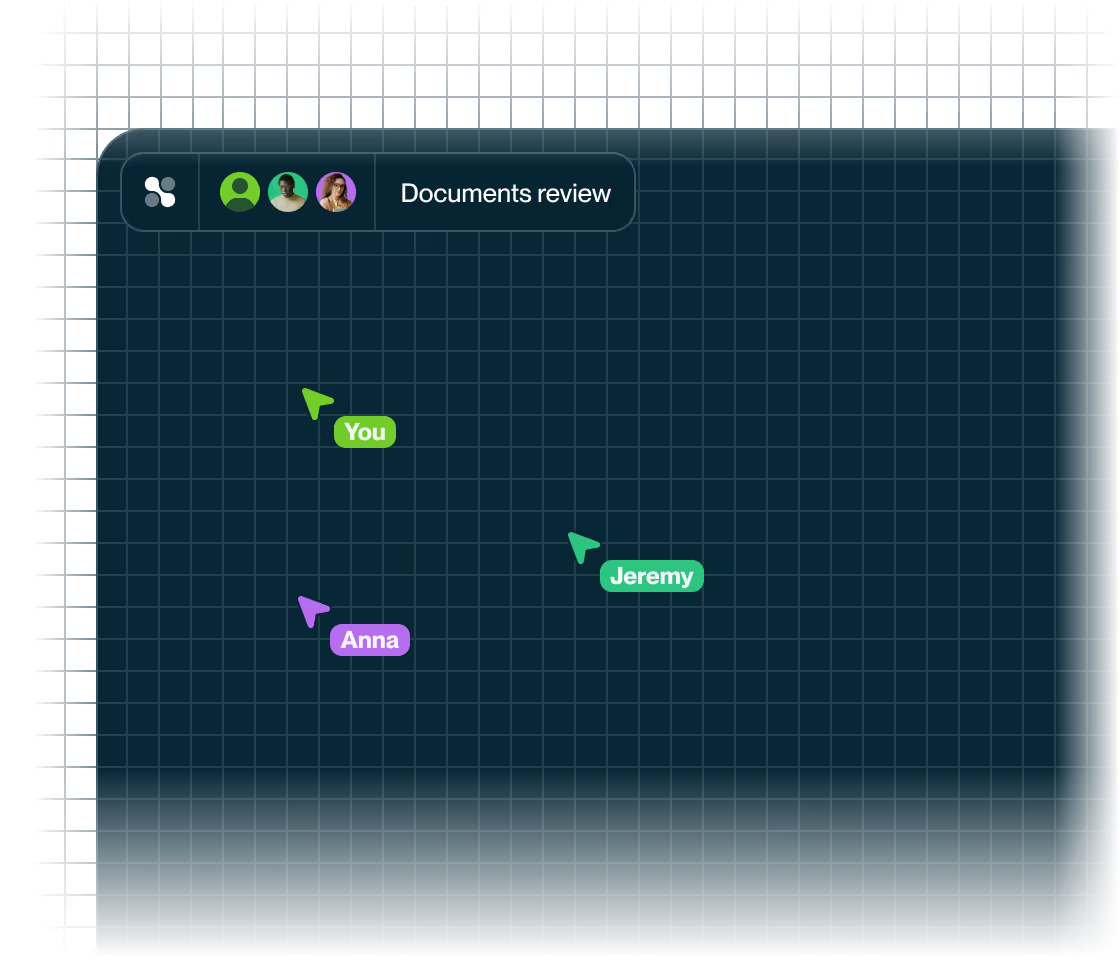
Tasks are visible right where ideas are created. Instead of switching between tools, you work on one board that connects planning and collaboration.
Create tasks directly on the whiteboard
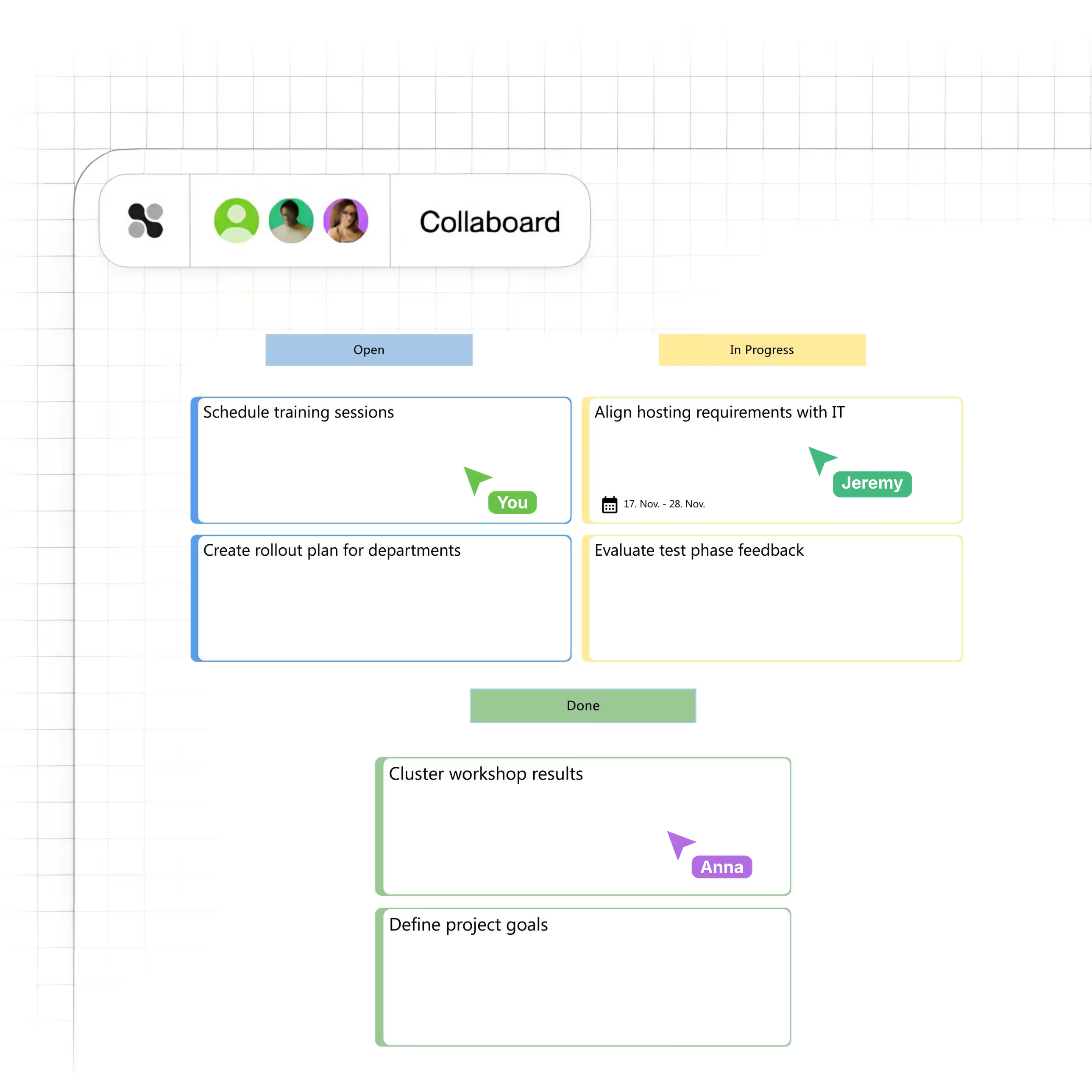
Manage tasks where collaboration happens: right on the board. With colors, assignees, dates and status, you give your projects a clear visual structure. Keep track of open to-dos, plan next steps and share responsibility with your team. All in one place.




























How do tasks in Collaboard help you?

Clear visual overview

Responsibilities at a glance
As soon as you assign a person in the task management tool, it is clear who is responsible for what. The assignee is notified by email and directly on the board.

Works with everything your team uses
Whether it's Kanban with tables, clusters in frames or discussions in comments: tasks can be linked with other elements on the board.
How do you create tasks in Collaboard?
1. Place a task on the board
Select the Task function in the left toolbar. Click on the board to place a new task, or hold down the mouse button and drag to set the width directly. The task appears immediately.
2. Enter a title and add details
Type directly into the task to set a title. Open the task details via the context menu or the gray icon in the bottom right corner. There you can set the color, status, assignee, start and end date and a formatted description.
3. Organize tasks by placing them in context
Link tasks with arrows, arrange them in frames or tables, use tags or add comments with mentions. This creates structure and makes sure tasks are anchored in the big picture.
What features do tasks in Collaboard offer?
With these features, you plan tasks right on the board and always keep track of what’s next.
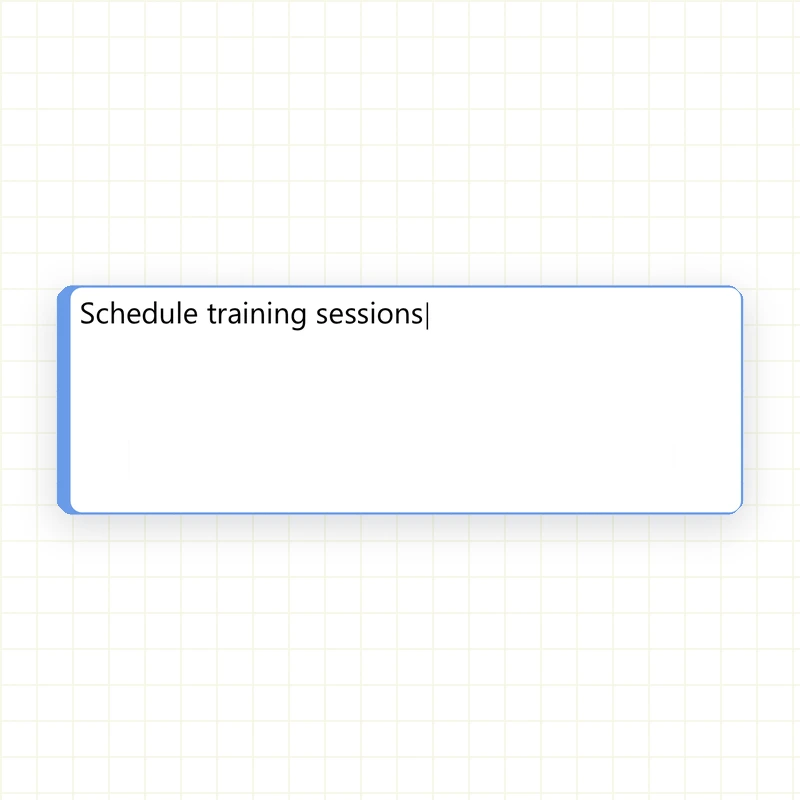

Type the title directly
This is some text inside of a div block.
Use the visible area for a short, clear task heading.
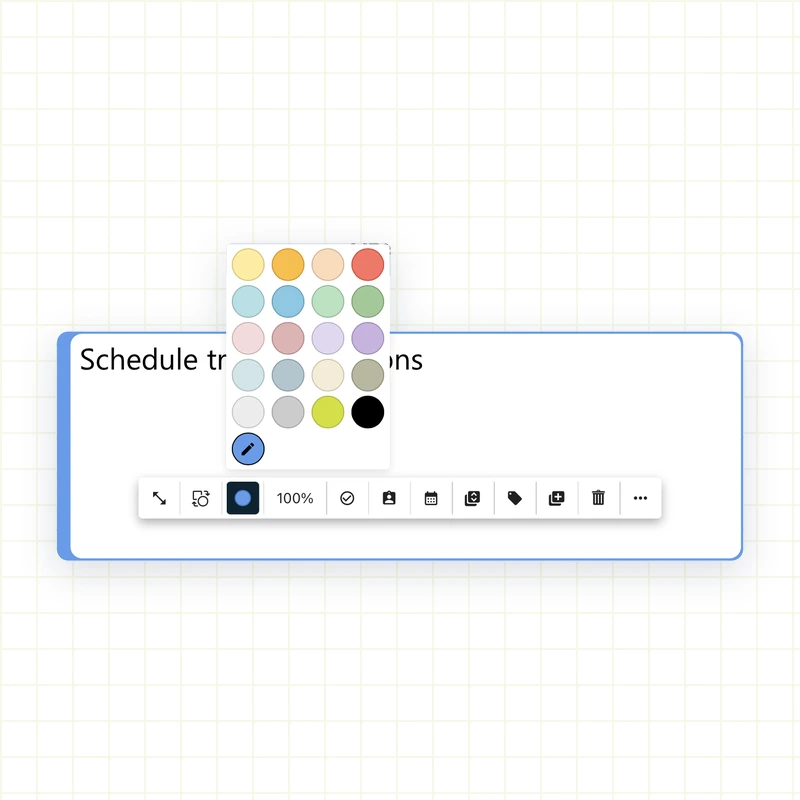
Assign a color
This is some text inside of a div block.
Choose a border color for labeling, for example to prioritize tasks in the tool.
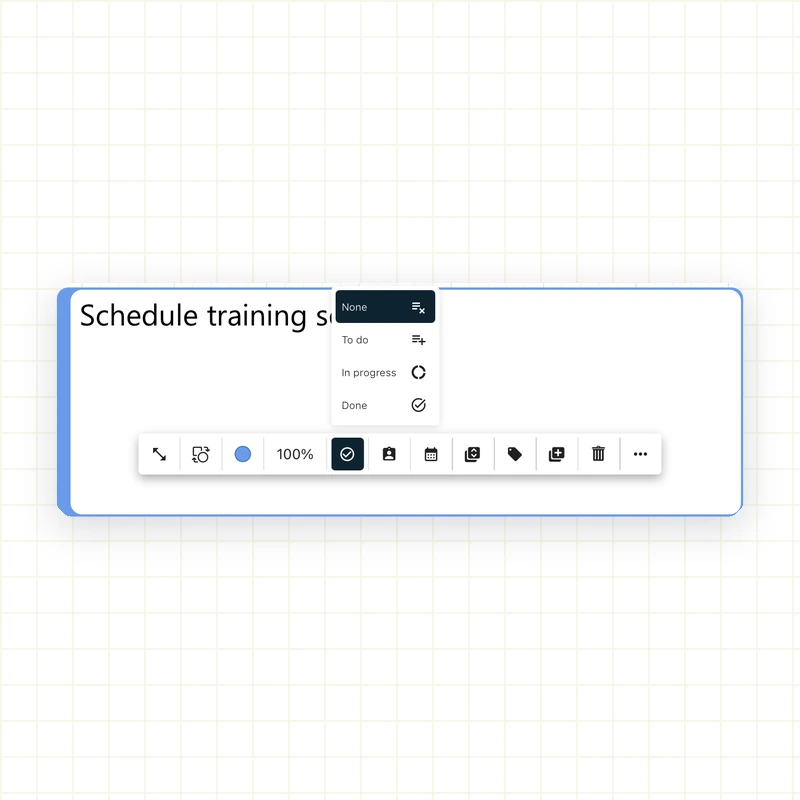
Set a status
This is some text inside of a div block.
Mark the progress with one of three states or leave the field empty.
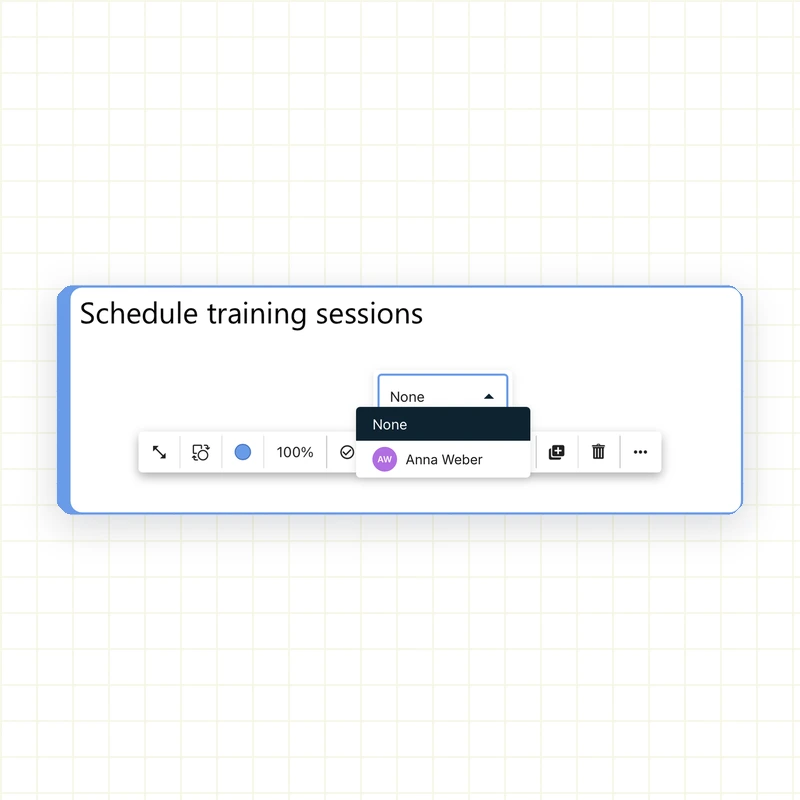
Select assignees
This is some text inside of a div block.
Choose an active person from the board. Guests cannot be assigned.
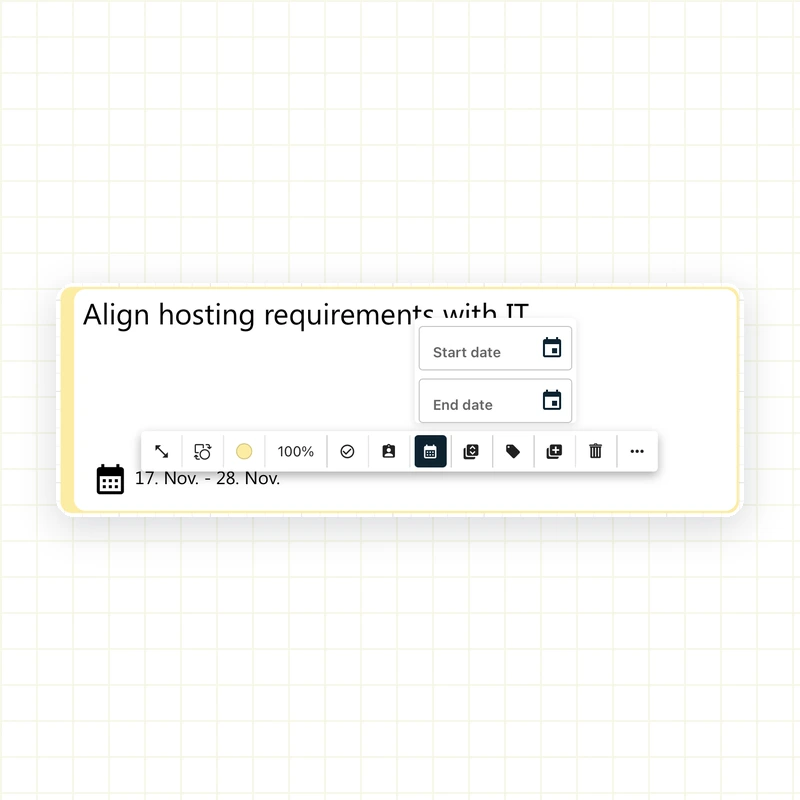
Set start and end dates
This is some text inside of a div block.
Define a time frame for the task so you meet deadlines.
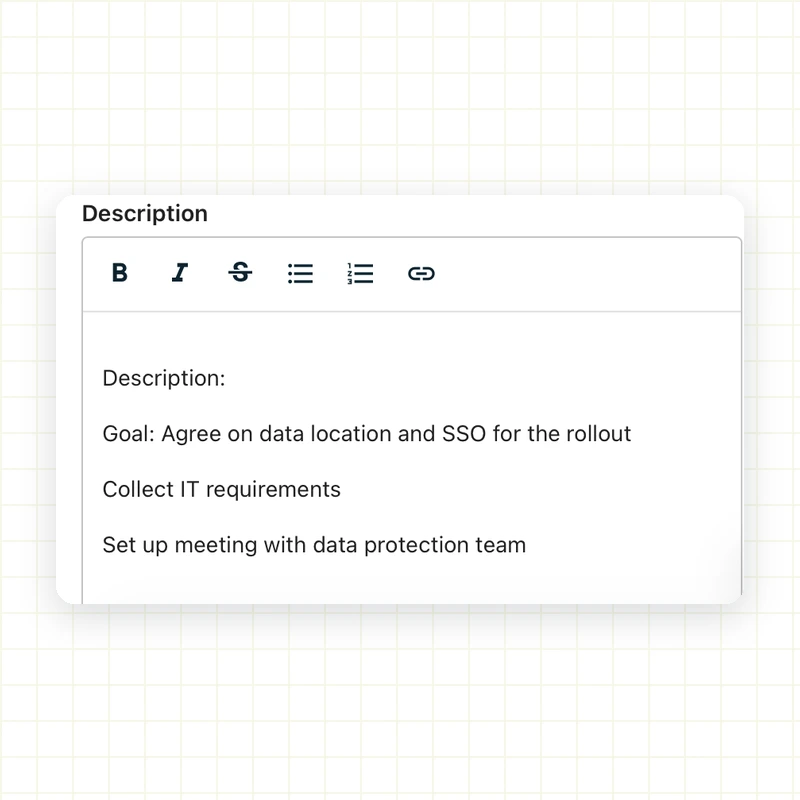
Add a description
This is some text inside of a div block.
Use bold, italic, strikethrough, lists or links in the details area.
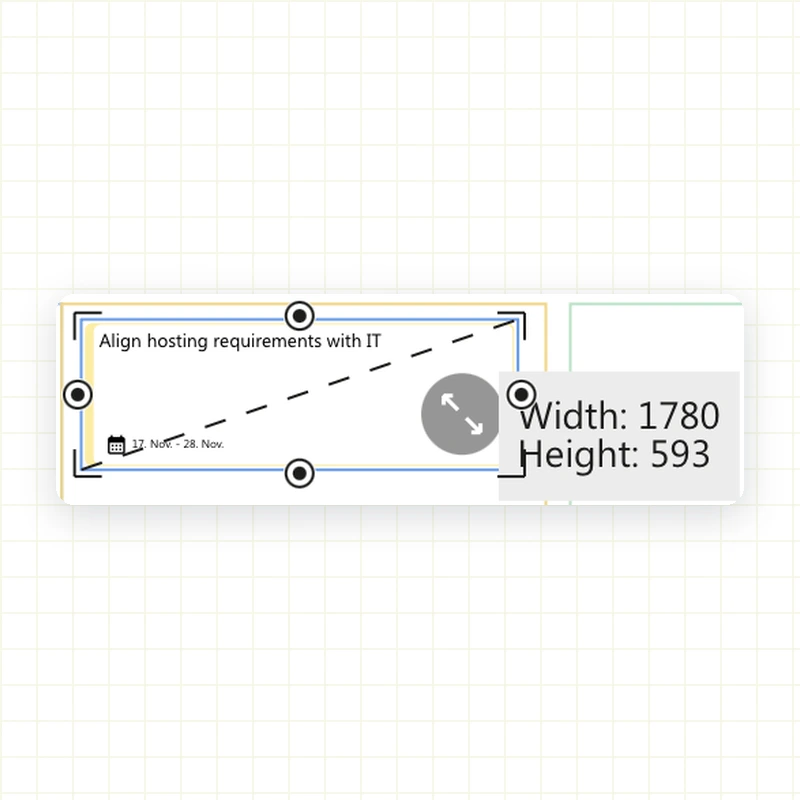
Adjust quickly
This is some text inside of a div block.
Adjust the width of the task to its content. The height adapts automatically.
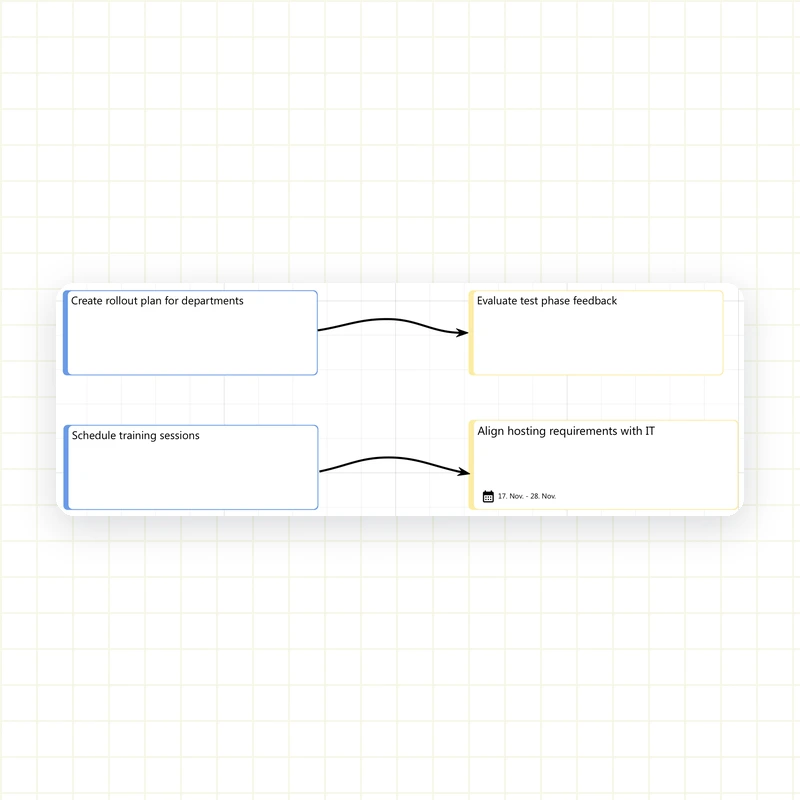
Connect tasks
This is some text inside of a div block.
Create visual flows with arrows and use connection points.
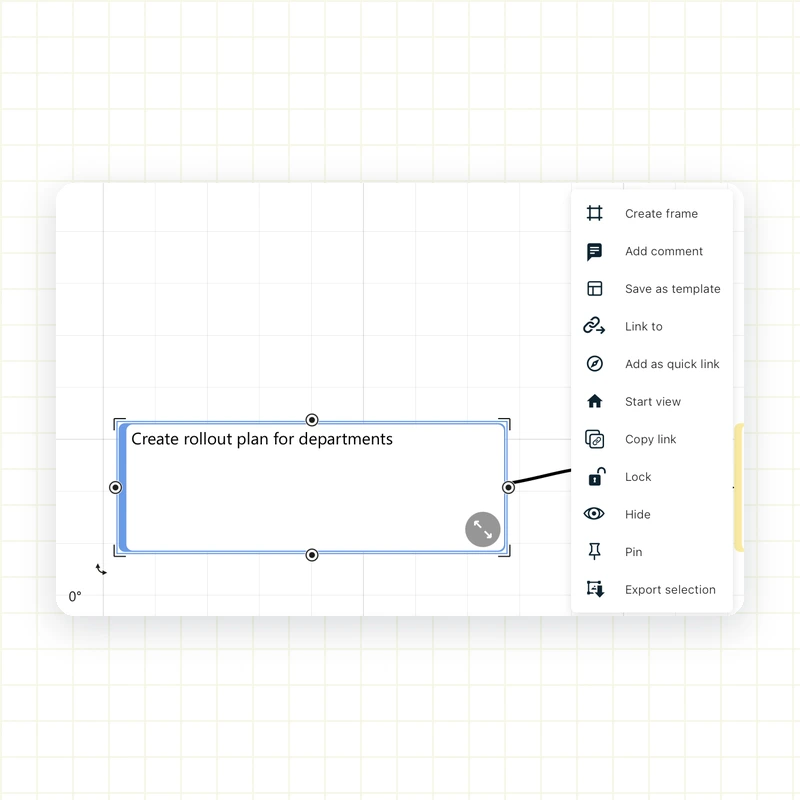
Use the context menu
This is some text inside of a div block.
Access all editing functions directly via the right-hand menu.
Where can you use tasks effectively?
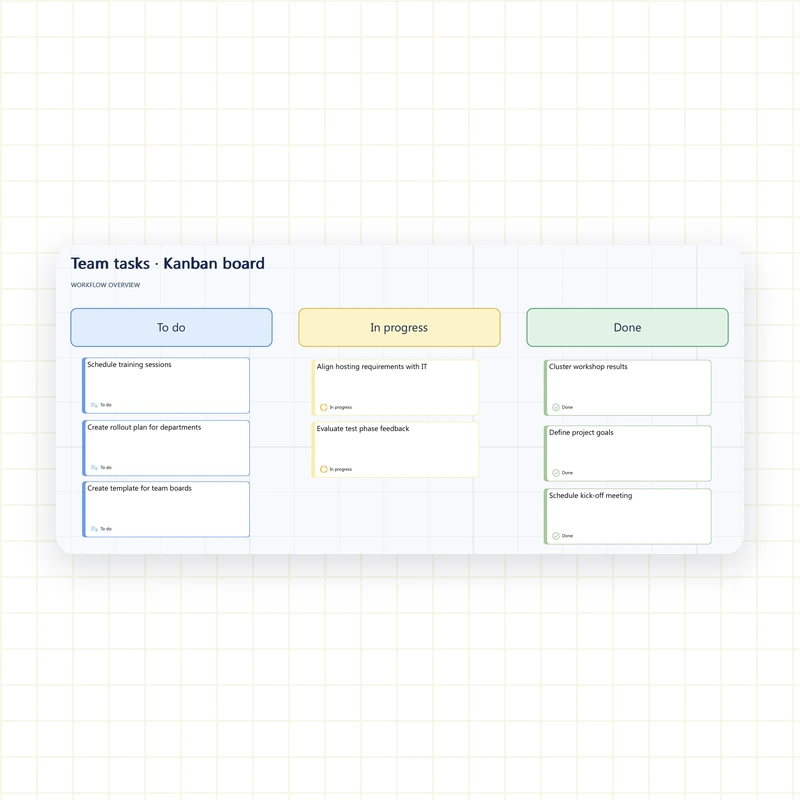
Visual Kanban board
Plan tasks directly on the board, without external tools. You can place the tasks in tables or shapes and move them around. This creates a clear workflow that you can adjust at any time.
- Sort tasks by status
- Make assignees visible
- Move tasks easily via drag and drop
Agenda for structured meetings
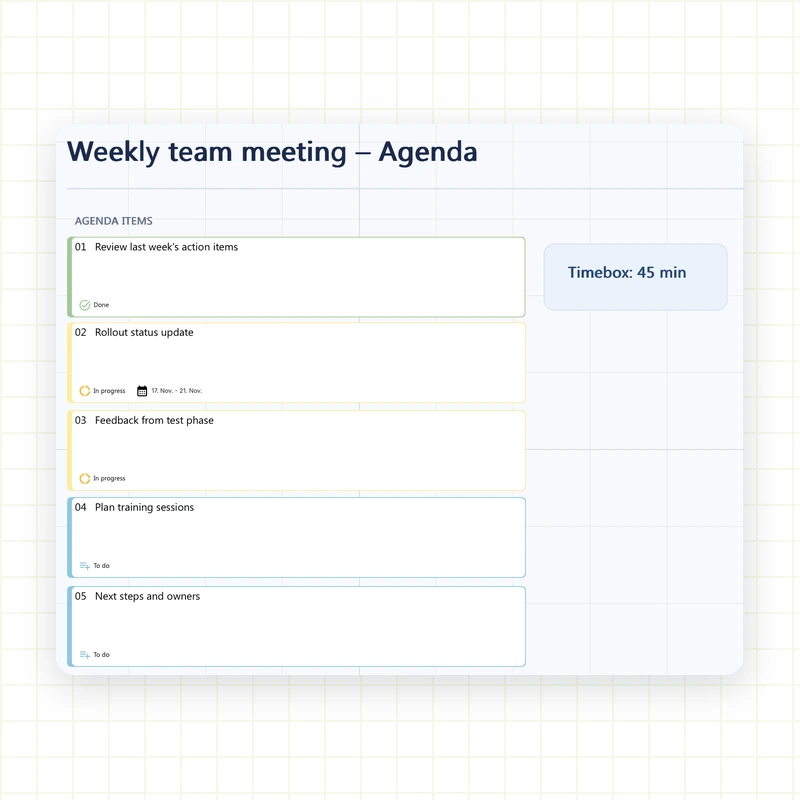
Use tasks to prepare and run meetings in a focused way. Each agenda item is recorded as a task, assigned and can be tracked.
- Create topics as tasks
- Set responsibilities and times
- Process results directly
Put workshop results into action
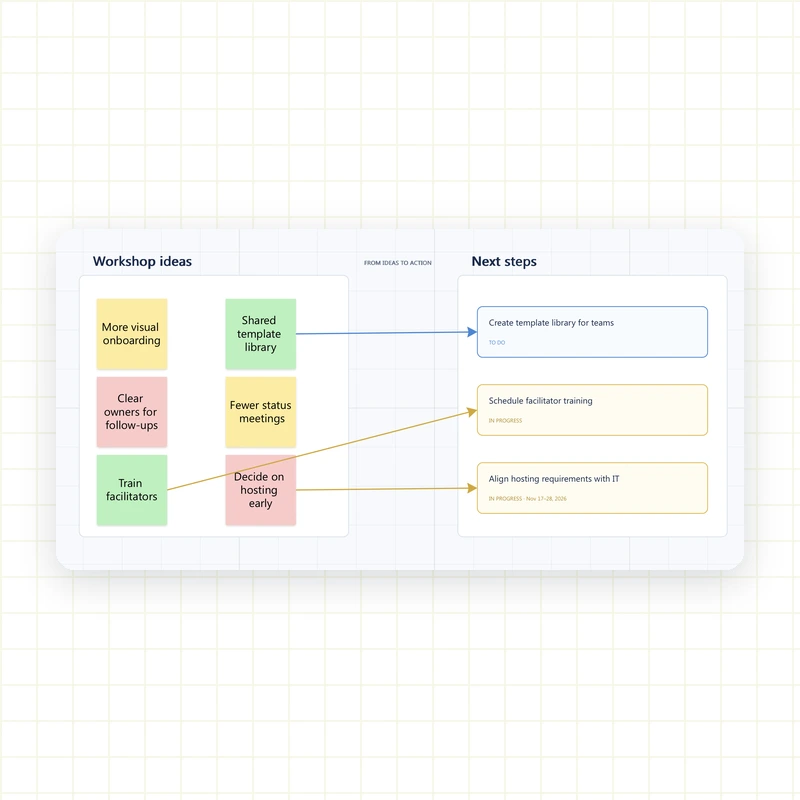
Collect ideas in the workshop, sort them into tasks and plan the next steps right away. No results get lost and your team knows how to move forward.
- Define tasks directly in the workshop
- Link them with tags, comments and frames
- Document follow-ups on the same board
Which templates work well with tasks?
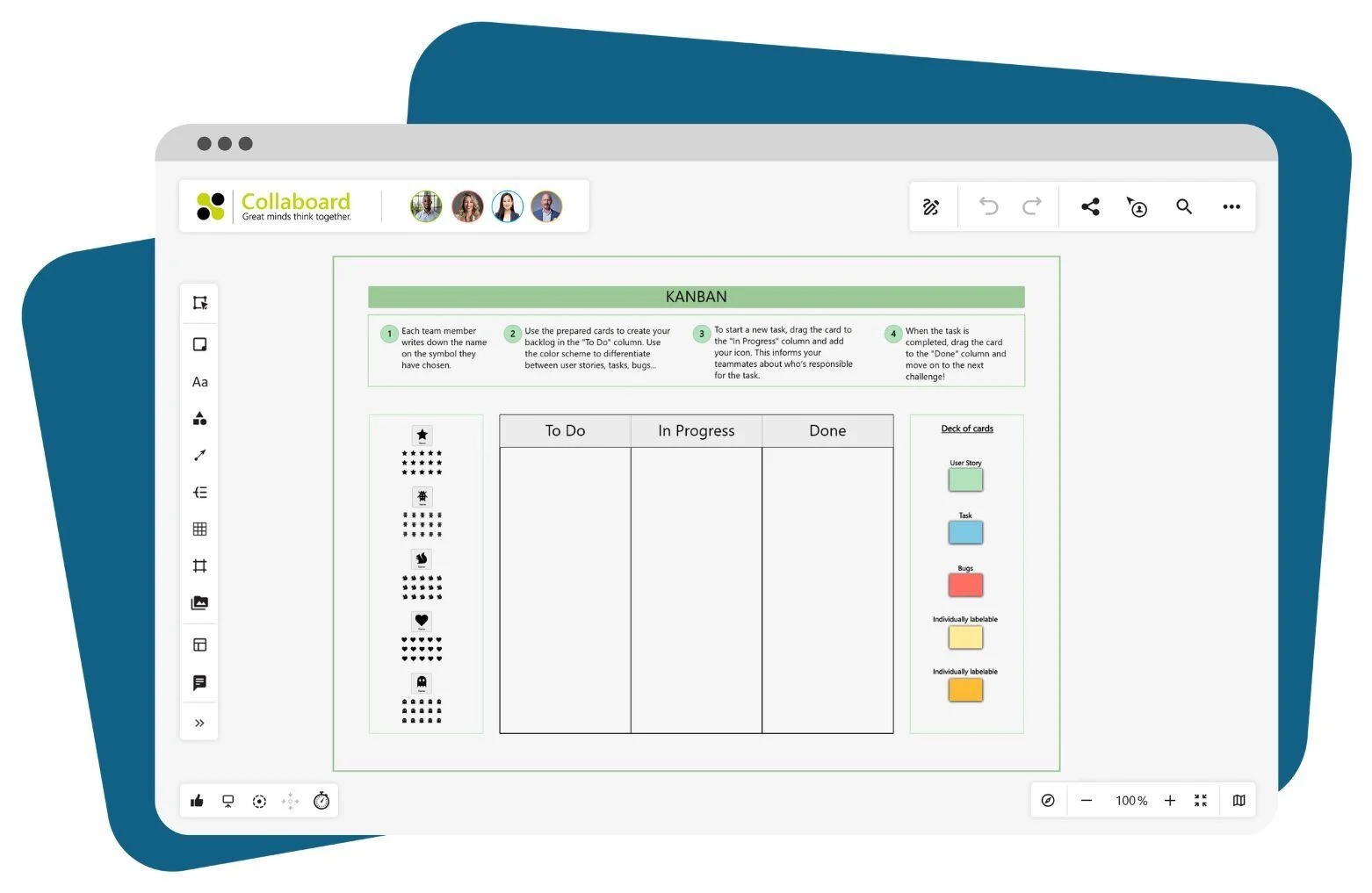
Kanban Board
This template is ideal for organizing tasks in different stages. You can create tasks directly on the board, move them and mark them with colors. The visual layout helps you keep track at all times.
- Sort tasks by status
- Assign team members directly
- Use color markers for orientation
Retrospectives
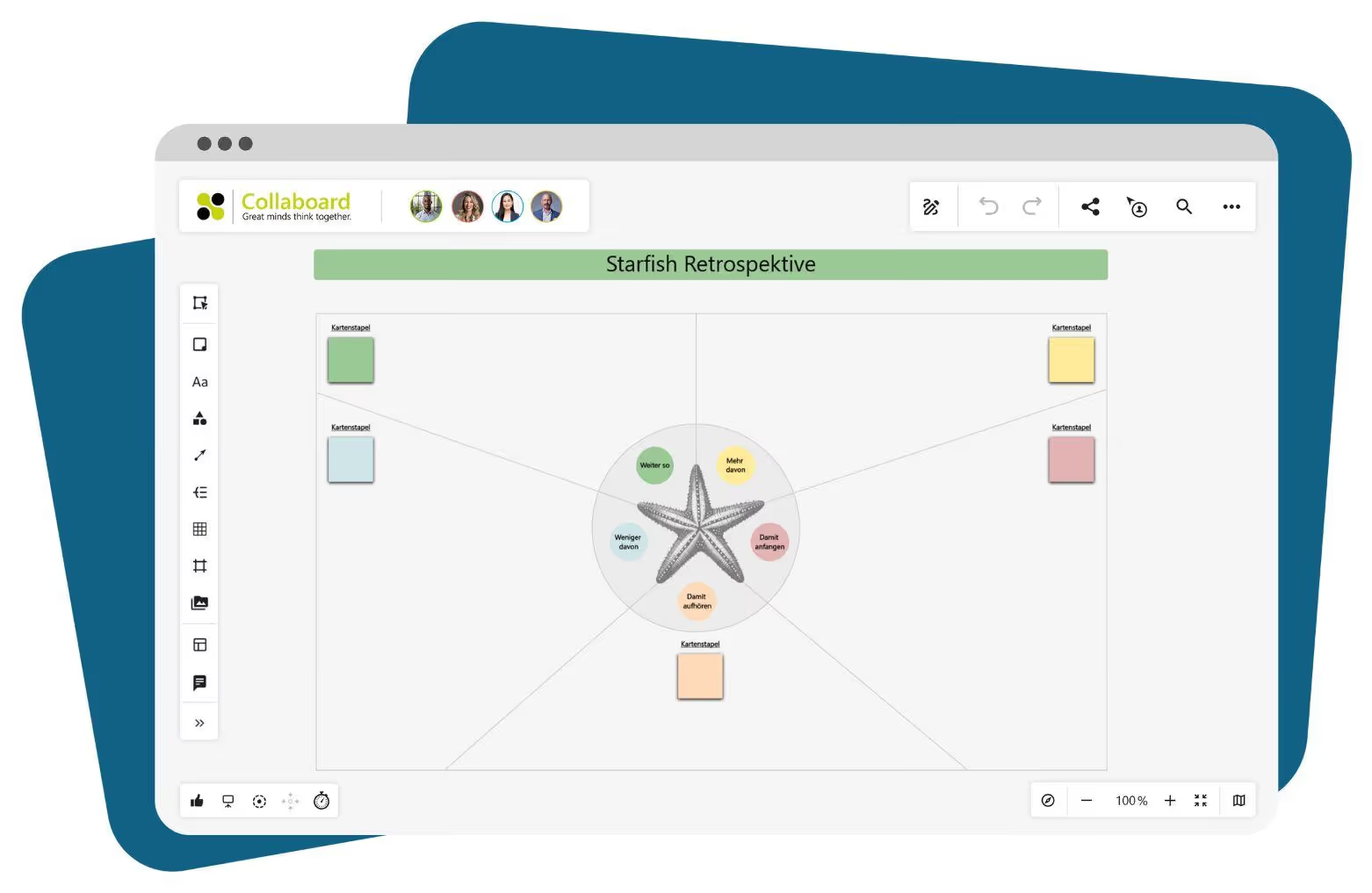
Turn the results of retrospectives directly into tasks. This way, retrospectives don't stop at insights but move straight into concrete next steps. Tasks can be clustered by topic, tagged and tracked.
- Capture results so they stay visible and editable
- Assign responsibilities for follow-up tasks
- Keep an overview with colors and status
Tips for using tasks in Collaboard
The following tips help you integrate tasks into your daily work and keep your boards clear:
- Work with color codes to structure tasks. Use colors for different project phases or teams, for example. This lets you see at a glance which tasks belong together.
- Use tables as columns for a Kanban board. Each column represents a status, and you can move or reassign tasks freely. This lets you steer the course of your project directly on the board.
- Link tasks with arrows to make dependencies visible. Connecting lines make workflows clear and easy to follow. This is especially helpful for processes with several people involved.
- Use comments to develop tasks together. With mentions in the comment section, you reach the responsible people directly and clarify questions in context.
- Plan tasks with start and end dates to meet deadlines. Especially for workshops, submissions or project phases, clear time frames help you keep track.
Tasks in Collaboard – Frequently Asked Questions
Any questions? We are here to help.
Yes, participants can write content on cards you have prepared. You can integrate additional methods like ratings or polls to make feedback visible and actionable.
Define topic phases on the board, place cards accordingly, and use shapes or frames. Invite all participants early and make sure everyone has access so you can start right away.
Use the lock function in Collaboard to fix specific cards or shapes in place. This keeps important content stable while participants work in other areas.
Yes, you can copy cards at any time or save an entire board as a template. This saves you time in preparation and preserves proven workshop structures.
Templates like 6-3-5 Brainwriting, SCAMPER, and 5-Finger Feedback bring structured methods directly to the board. They help you spark creativity, organize feedback, and make results visible.
Start your next whiteboard now
Get a free trial of Collaboard with up to 3 boards and five people per session. All key features are available for you to try out.