A dark background reduces eye strain during prolonged use.
Dark Mode in Collaboard: Comfortable working in any light
Dark Mode helps you work more comfortably on the whiteboard. Especially late in the evening, with low screen brightness, or when working with a projector, it's easier on your eyes.
You can darken both the user interface and the board itself.
.avif)
















































What are the advantages of Collaboard's Dark Mode?
Collaboard helps you capture, structure, and collaboratively develop new ideas. On the whiteboard, you design your process step by step and prepare content so that you can further develop and utilize it as a team.

Relaxing for the eyes

Less distraction while working
Colored content stands out better, keeping the focus on your content.

Save energy on mobile devices
Dark mode reduces battery consumption on OLED screens.
How do I activate Dark Mode in Collaboard?
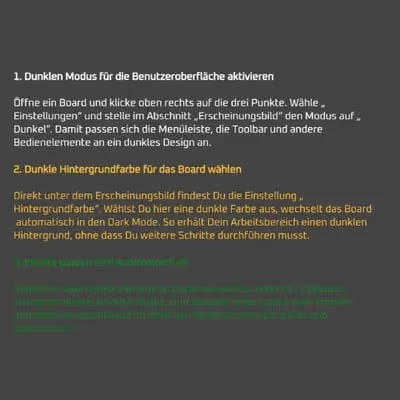
1. Enable dark mode for the user interface
Open a board and click the three dots in the upper right corner. Select "Settings" and in the "Appearance" section, set the mode to "Dark". This will adapt the menu bar, toolbar, and other controls to a dark theme.
2. Choose a dark background color for the board.
Directly below the appearance settings, you'll find the "Background color" option. Selecting a dark color here will automatically switch the board to Dark Mode. This gives your workspace a dark background without requiring any further action on your part.
3. Content adapts automatically.
As soon as you select a dark background color, Collaboard recognizes black content on the board, such as text, lines, or shapes, and automatically displays it in white. This ensures everything remains easily readable and clear.
Collaboard's Dark Mode Features
Here you can find detailed dark mode features for the Collaboard online whiteboard.
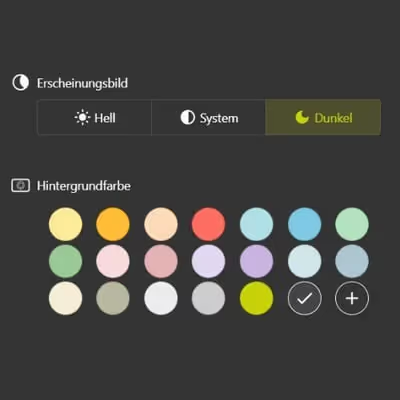

Choose your own board color
This is some text inside of a div block.
Choose a suitable background color for your board from all available colors. This allows you to visually support work atmosphere, topics, or presentation purposes.
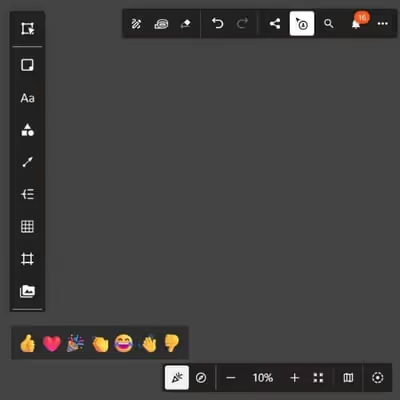
Darken menu bars
This is some text inside of a div block.
Customize the user interface appearance independently of the board. The menus and tools will then appear in a dark theme: ideal for long sessions.
Automatically invert colors
This is some text inside of a div block.
If you set a dark background color, Collaboard automatically converts black content to white. This ensures everything remains easily readable without you having to make any changes.
Improve text readability
This is some text inside of a div block.
A dark background and light text create a strong contrast, which increases readability, especially during presentations or long screen use.

Visually enhance presentations
This is some text inside of a div block.
Dark whiteboards help you to clearly define and highlight content. Especially when used with a projector, the design appears calmer and more pleasant.
Use Dark Mode as an eye-friendly option
This is some text inside of a div block.
In the evening or in dimly lit rooms, Dark Mode reduces screen brightness. This is helpful for focused work or relaxed feedback.
Three typical use cases for online blackboards
Online workshops with projector
A dark background ensures better visibility and less glare during presentations.
- Good readability in large format
- Fewer light reflections
- Concentrated presentation

Working with large amounts of text
When working intensively with text, the dark background is easier on the eyes, especially during longer sessions.
- Less eye strain
- Clear contrasts in notes
- Uniform presentation

Working in the evening
Design boards in dark colors to work in a focused manner in the evenings without disturbing your surroundings.
- Calm working atmosphere
- Subtle colors for brainstorming sessions
- Switching to a light design is always possible.

Our tips for using Dark Mode
Here are some helpful tips on how to get the most out of a digital blackboard:
- Choose a dark color to switch automatically : The automatic switch will take effect as soon as you set a dark background color. You don't need to make any further settings.
- Use light colors deliberately : Light colors stand out even more against a dark background. Use this effect strategically for your content.
- Check the contrast beforehand : Make sure there is sufficient contrast during presentations. You can always switch between light and dark to test the display.
- Synchronize system mode : If you select "System" in the appearance settings, Collaboard will adapt to your device's mode.
Dark Mode in Collaboard – Frequently Asked Questions and Answers
Any questions? We are here to help.
Yes, these are two separate settings. You adjust the interface via the "Appearance" option. To make the board dark, select a dark background color directly below. Once you do, Collaboard automatically switches to Dark Mode for content on the board.
No, your content remains fully intact. Collaboard automatically detects which content would be hard to read on a dark background and adjusts it accordingly. For example, black text or lines are converted to white so everything remains clearly visible.
The dark user interface (UI) only affects menus, toolbars, and settings. When you select "Dark" mode here, only the colors of these elements change. The board itself remains light until you manually set the background color to a dark shade.
Yes, you can use Dark Mode on mobile devices in the browser as well. Collaboard works device-independently directly in the web browser. All settings you configure on your computer can also be used on the go.
Yes, the current background color of your board is taken into account during export. When you save as a PDF, PNG, or another format, the dark appearance is preserved.
Start your next whiteboard now
Get a free trial of Collaboard with up to 3 boards and five people per session. All key features are available for you to try out.