Intuitive user interface where you can get started right away without much effort. No app to install, use it directly in your web browser.
Flowchart Templates
Check out the flowchart templates on the online whiteboard


About the flowchart template
Create your flowchart easily using one of our many templates. These templates help you save time and create higher-quality flowcharts. Especially if you don’t have much experience with flowcharts yet, templates are a great help because they provide a solid foundation you can build upon.
Easily create your new flowchart using one of the templates from the Collaboard online whiteboard and customize the template to meet your specific needs.

Flowchart templates in Collaboard
Over 2 million people trust Collaboard and use the online whiteboard and over 150 templates.

Flowchart Templates: The most important information at a glance
There are numerous different types of flowcharts , such as data flowcharts, business process flowcharts, decision flowcharts, or flowcharts based on methods like UML or BPMN. Templates are available for all these types of flowcharts to help you get started.
What are flowchart templates?
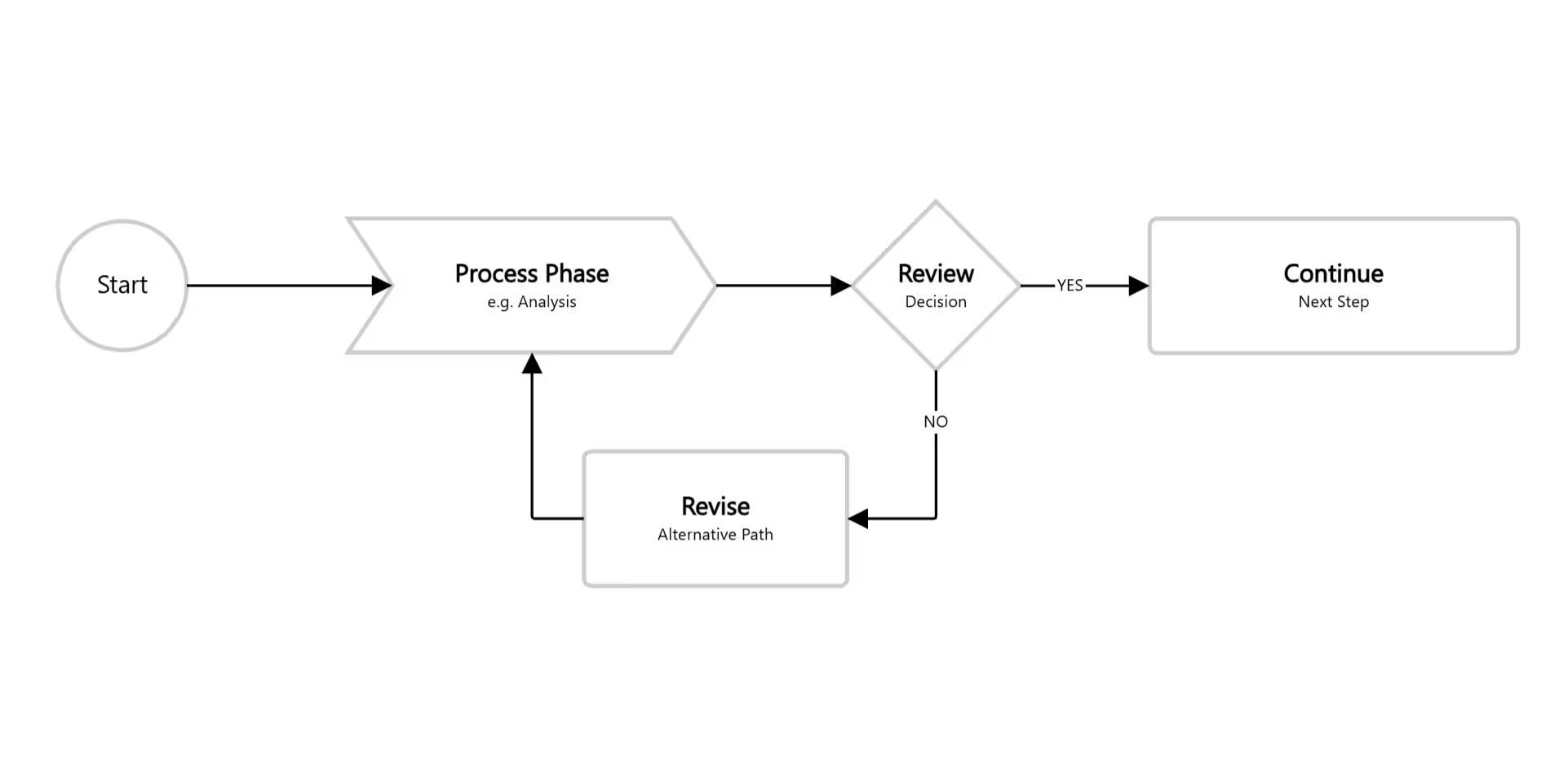
Flowchart templates are pre-made building blocks that you can use to create and expand your flowchart. The templates give you an initial impression of what your flowchart will look like. The existing structure of the template provides guidance on how to visualize the flowchart for your process or workflow.
Why are flowchart templates useful?
Using a template means you don't have to start from scratch. You can enter the initial process steps directly into the template and then expand it as needed. The major advantage of a template is that it provides a framework , ensuring your flowchart follows a consistent convention. Templates also serve as a guide , helping you determine which type of flowchart is best suited to your needs.
Furthermore, using familiar templates makes your flowcharts easier for others to understand, as you'll be using the same methodology and symbols.
Various types of flowchart templates
For every type of flowchart, there's a template or example you can use as a guide. We've summarized the most important flowchart templates for you in the following section:
Process flow diagram templates
Process flow diagrams are frequently used in industry to illustrate specific workflows. For example, a manufacturing process for a product or the flow of an order and shipping process.
Process flow diagram templates support you by providing a pre-modeled process that you can then adapt to your own process. In many cases, the processes don't need to be completely reinvented. For example, many ordering processes share similar foundations, and you can build upon these or even find inspiration for your own process.
Decision flowchart templates
We all want to make the right decisions in life and at work. The path to making a decision is influenced by various factors, and smaller decisions can have an impact on larger ones.
Decision flowcharts visualize the decision tree with all its branches. The diagram illustrates which factors influence a decision and what cause and effect a single decision has within the overall decision-making process.
Using a template that shows you a predefined decision process, you can quickly create your own decision flowchart. Examples of decision trees include the classification tree , the regression tree, and the entropy-based tree.

Data flow diagram templates
A data flow diagram models the transport, processing, and storage of data. Data flow diagrams are often modeled according to specific conventions such as UML or BPNM . A data flow diagram template already contains a pre-defined data flow and all the elements needed to create that data flow.
Using a template helps ensure you adhere to the conventions of the modeling language. The advantage is that other people familiar with the model type can easily understand the data flow diagram.
Create a flowchart with Collaboard
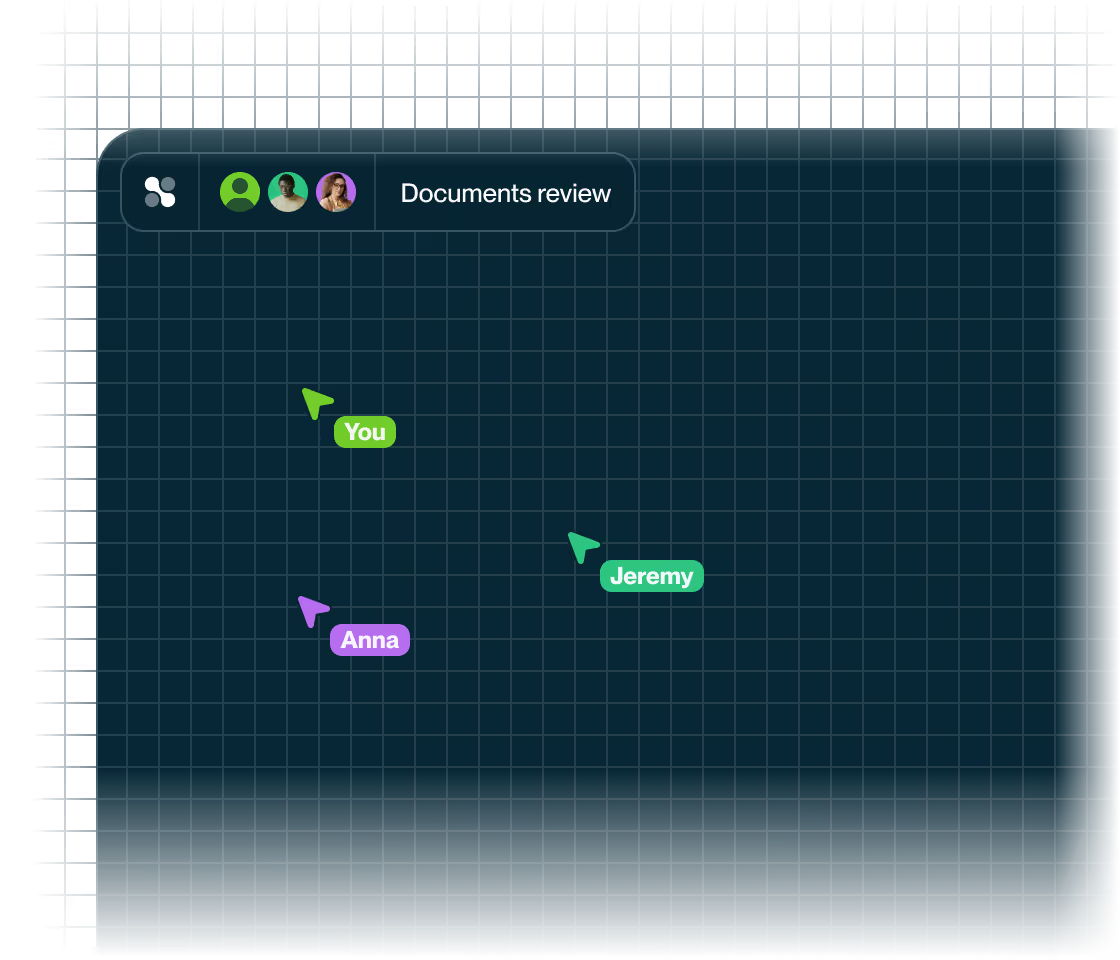
With the online whiteboard Collaboard, you can create flowcharts quickly and easily. Collaboard is suitable for creating flowcharts individually or as a team. Thanks to its user-friendly interface, your team members won't need a lengthy introduction and can typically contribute to the flowchart within minutes .
You can create flowcharts in Collaboard from scratch or use one of the existing templates. Alternatively, you can also import flowcharts you've created in other tools as images or PDFs into Collaboard. We describe best practices for this below.
In the following section, we'll show you how to create a flowchart on the whiteboard using Collaboard.
1. Create a blank whiteboard or use a template.
In Collaboard, you can easily create a new whiteboard. Decide during the board creation process whether you want to start with a blank whiteboard or a template.

2. Add a flowchart template to an existing Collaboard.
Depending on the type of flowchart you're creating, certain structures need to be formed, such as swimlanes. You can easily copy these structures from a template or build them yourself using the existing shapes in Collaboard.
It's important to ensure that, for example, the swimlanes are positioned in the background on the whiteboard and that they are locked while you're creating the flowchart. This prevents you from accidentally moving your structures.

3. Define the area for your flowchart
Create flowcharts easily, alone or as a team, on the online whiteboard Collaboard. On this infinitely large whiteboard, you can model processes using familiar symbols and connections.
You can even create flowcharts with the free version of Collaboard. You can get started right away with up to 5 team members.
4. Add shapes and icons
In Collaboard, you'll find numerous elements among the existing shapes to support you in modeling a flowchart. The BPMN template in Collaboard also includes its own icon set, which adheres to the BPMN methodology.
The shapes, icons, and their labels represent the individual steps in your flowchart. If you work with your own process icons, you can import them into Collaboard and use them on the online whiteboard.

5. Connect the shapes and icons with lines – Visualize the flow
The central aspect of a flowchart is the actual flow from beginning to end. You can represent this flow using connecting lines. You create lines between two objects on the whiteboard by clicking on the small circle at the edge of the object and then dragging a connecting line to the next object. As soon as the line is near another object, it will "magnetically" connect to it.
You can detach the connecting lines at any time and attach them to a new object. If you want your line to end in mid-air, simply release it, and it will be displayed on the whiteboard without any connection to another object.
You can define the beginning and end of each line. Numerous symbols are available, such as arrows, squares, circles, diamonds, etc. You can also customize the line itself, choosing a color, setting the line thickness, and selecting whether the line should be solid, dotted, or dashed.
Tips for using flowchart templates
Use the default line settings.You can define default settings for lines in Collaboard so that each new line has exactly the properties relevant to your flowchart. Use the default settings in Collaboard.Copy and reuse existing diagram parts.You can easily copy existing diagram parts or entire flowcharts. Create a copy on the same whiteboard or copy your flowchart from one board to another using (Ctrl + C and Ctrl + V). Import your own icon set.If you use your own icon set to create your diagrams, you can easily import the icons as images into Collaboard. It is recommended to import the images as vector files (e.g., .SVG). This keeps the file size small and allows you to scale the icons on the whiteboard without loss of quality. Customize your whiteboard and flowchart content to match your corporate design.In Collaboard, you can choose your own color for each element (card, shape, line, text). Either enter the HEX color code, or use the built-in eyedropper tool to select the color from a
Create flowcharts online with Collaboard
Create flowcharts easily, alone or as a team, on the online whiteboard Collaboard. On this infinitely large whiteboard, you can model processes using familiar symbols and connections.
You can even create flowcharts with the free version of Collaboard. You can get started right away with up to 5 team members.
Why Collaboard

Easy to use

Highest data security
Collaboard offers GDPR-compliant data hosting in Europe, Germany or Switzerland of your choice.
Numerous integrations
Collaboard can be easily integrated into your existing video conferencing and collaboration solution.
Flowchart Templates: Frequently Asked Questions
Any questions? We are here to help.
There are several ways to create your own templates. Once you've created a flowchart template, you can simply copy it as a template from one board to another. Alternatively, you can create a board that you use as a template and then copy the entire board each time.
When using flowchart templates, it's important to lock individual sections of the diagrams so they aren't accidentally selected or moved during the diagram creation process. It's also worth grouping background structures such as swimlanes so you can move them as a group on the board. Lock content on Collaboard Group content on Collaboard
You can adjust multiple connection lines at once by selecting them. If you hold the Ctrl key on your keyboard, you can use the mouse to select multiple lines and then adjust the appearance for all selected lines at the same time.
If you've already created a flowchart in another tool, you can export it as an image or PDF. In Collaboard, you can import images and PDFs in various formats. You can then use the drawing tools to annotate the imported flowchart and add further information with cards and comments.
Start your next whiteboard now
Get a free trial of Collaboard with up to 3 boards and five people per session. All key features are available for you to try out.