PDF Import in Collaboard – Edit PDF Content Directly on the Whiteboard
Turn static PDFs into living whiteboards.
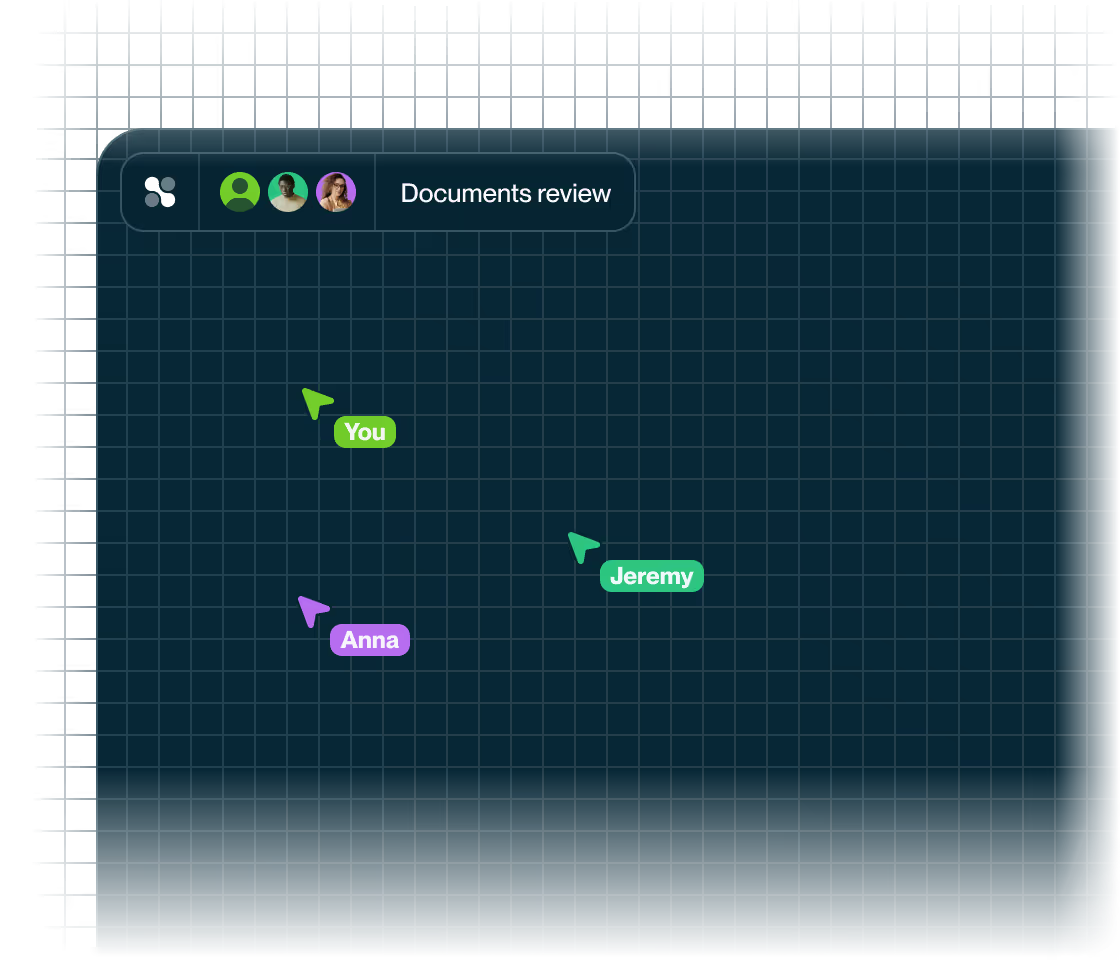
Import your PDFs into Collaboard and edit text, shapes, and images directly on the board.
Build on existing content, collaborate in real time, and move ideas forward together.
















































Why bring your PDFs into Collaboard?
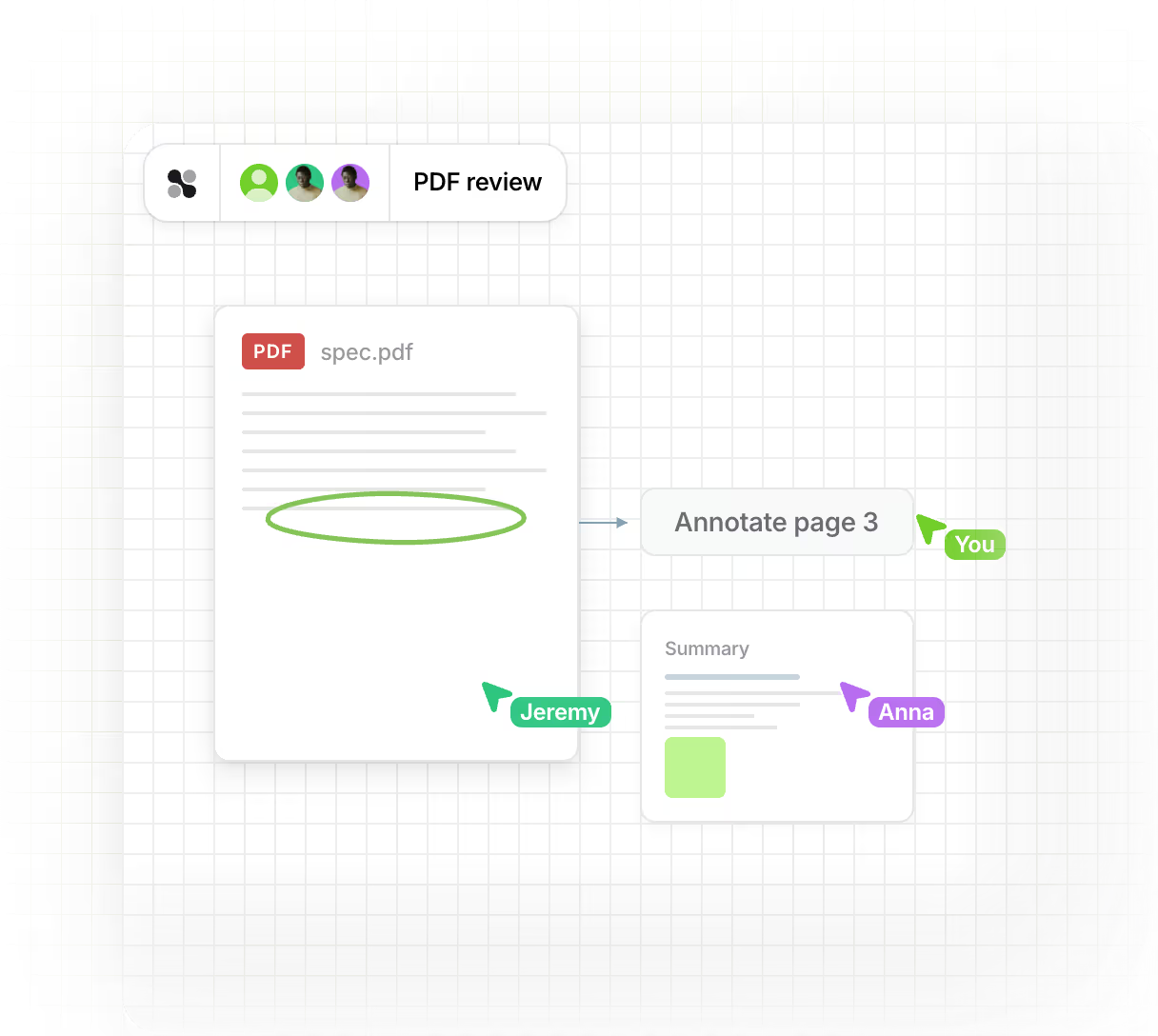
Instead of showing PDFs as static images, Collaboard brings them to life. Import a PDF and work directly with its content: move, edit, highlight, or extend it – on your own or together with your team.
PDF import helps you to:

Reuse existing content without recreating it from scratch
Turn static documents into interactive collaboration spaces
Simplify teamwork by editing the same content together instead of exchanging comments back and forth


Transform static PDFs into interactive content
Collaboard recognizes all vector-based elements during import, allowing you to edit text, shapes, lines, and images directly on the board.

Import from Miro, Mural & more
Export your boards from other tools as PDFs and bring them into Collaboard.Keep working with existing content, make changes easily, and collaborate seamlessly as a team.

Move, edit, and adjust text and images freely
Reorganize content, add new elements, and visually emphasize what matters.

Collaborate and iterate together
Collaborate on content such as campaigns, forms, or presentations – all directly on the whiteboard.

Supports PDFs containing vector graphics
Collaboard supports importing any PDF with vector-based content, no matter which tool it was created with.

Seamless integration into the whiteboard
Once imported, your PDF becomes part of the board and can be edited using all standard Collaboard tools – including sticky notes, shapes, pens, and connectors.
Here’s how it works – step by step
- Select your PDF: In the whiteboard menu, click “Import project from PDF” and choose the file you want to import.
- Automatic conversion: Collaboard analyzes the PDF and converts all vector-based content – text, lines, images, and shapes – into editable objects.
- Edit & organize: After import, you can move, adjust, or regroup every element. Your PDF becomes a dynamic workspace you can actively work with.
- Collaborate and iterate: Share the board with others, add comments, or discuss content directly on the board. Everyone sees changes live, in real time.
Tips for the best PDF import experience
- For best results, use PDFs with vector-based content.
- Image-only or scanned PDFs are not ideal for editing.
- If you only want to add annotations, upload the PDF instead of importing it
- Test the import with complex documents, as results may vary depending on the PDF structure..
PDF Import in Collaboard – Frequently Asked Questions
Any questions? We are here to help.
Collaboard has been optimized for importing many types of PDFs. However, depending on the structure and software the PDF was created in, some elements may be slightly shifted or grouped together. Particularly complex or older PDFs can vary in their rendering.
PDF import supports all PDFs with vectorized content — files originally exported from programs like PowerPoint, Illustrator, Miro, or Mural. Scans or purely image-based PDFs cannot be converted into editable objects.
With PDF import, vectorized content such as text, lines, and images becomes editable in Collaboard. PDF upload, on the other hand, inserts the PDF as an image — ideal when you want to annotate content without modifying it.
If you only want to view or annotate a PDF — such as a floor plan, layout, or technical drawing — upload is the better choice. If you want to actively edit or restructure content — such as forms, presentations, or layouts — use PDF import.
Yes! You can export whiteboards from Miro, Mural, Microsoft Whiteboard, or similar tools as a PDF and then import them into Collaboard. All recognized content is automatically converted into editable elements.
Start your next whiteboard now
Get a free trial of Collaboard with up to 3 boards and five people per session. All key features are available for you to try out.